
Lead Generation
Lead generation gives your practice its own face-scan page. People open the link on their phone, scan themselves without installing anything and leave their contact details — and arrive in your workspace as leads.

- 01
Brand your scan page
Click 'Set up Lead Generation'. Under 'Look & feel', upload your logo, an optional welcome image and doctor photo, and pick your colours. Add your website, a privacy policy link and the practice email that should receive scan summaries, then save.
Where in the app
Settings › Organization › Lead Generation - 02
Go live and share the link
Switch the page live when you are ready. Copy the standard link or set an easy-to-remember one, and share it on your website, in emails, on social media or as a QR code in the practice. The page can be paused at any time.
Tip Demo mode is made for events and live demonstrations — leads captured in it are held out of your outcomes and not billed.
- 03
Patients scan themselves
Visitors take a face scan on their phone and see a short summary of their results. Those who leave their contact details become leads, and a summary can be emailed to your practice.
- 04
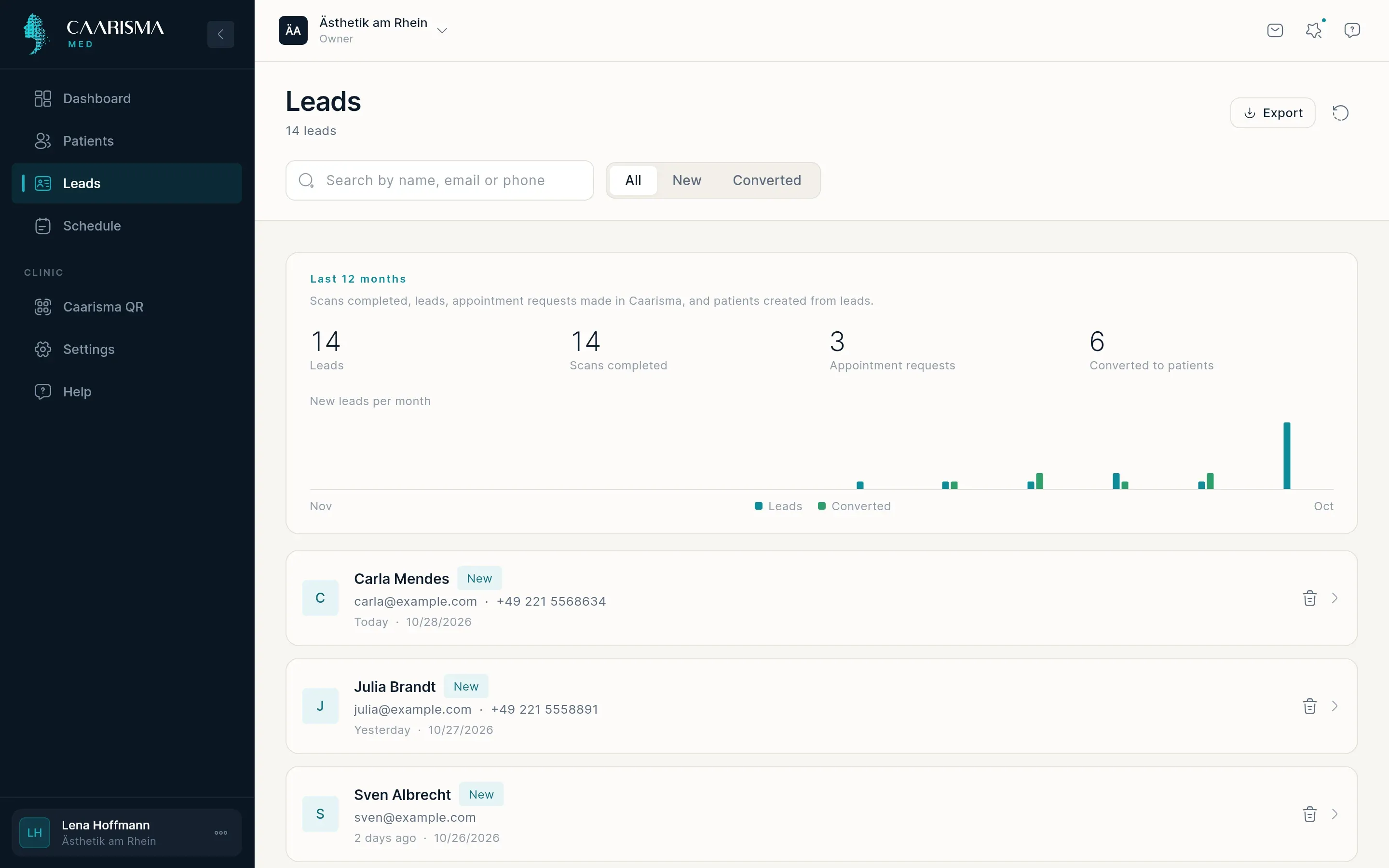
Work through your leads
New leads appear under Leads with what the person saw and their full scan results. On Home you see how many are waiting and at which stage people drop off between scanning and becoming a patient.
Where in the app
Leads - 05
Convert a lead
When the person comes in, open the lead and click 'Create patient'. Complete the details and the patient record is created with the scan already attached.

Try it in your own practice
Set up your practice in minutes, add your first patient and read your first analysis today — or let us walk you through it.
14 days free · Cancel anytime · Hosted in Germany